Contest Logging Engine
The Contest Logging Engine opens when you click the START button on a contest session in the Contest Manager. It provides a full-screen workspace optimised for fast QSO entry during a contest.
Workspace Layout
The engine uses a free-form, window-based layout. Each component is an independent, movable and resizable panel — drag the title bar to move it, drag the edges or corners to resize. Components can be layered on top of each other or arranged freely to suit your screen and operating style.
The default layout on first open places the components as follows:
- QSO Logger — large panel, top-left
- Radio — top-right
- Super Check Partial — right column, below Radio
- UTC Clock — bottom-left
- Map — bottom-centre
Components
QSO Logger
The main entry form and QSO list in one panel.
Entry form fields:
| Field | Description |
|---|---|
| Callsign | The callsign of the station worked. DXCC and callbook lookup triggers automatically as you type. |
| RST S / RST R | Signal report sent and received. Pre-filled with 59. These fields are skipped when pressing Tab. |
| Nr. S / Nr. R | Serial number sent and received. Visible only when the session has the Serial Number exchange field enabled. Nr. S is auto-incremented and gets reserved in multi op contests — see Serial Number Reservation. |
| Grid S / Grid R | Grid square sent and received. Visible only when the session has the Grid Square exchange field enabled. |
| Exch S / Exch R | Free-text exchange sent and received. Visible only when the session has the Exchange (text) field enabled. |
The Tab key moves focus through the active exchange fields only, in the order configured in the session setup. RST fields are excluded from the Tab order.
Press Enter on the last field to save the QSO.
DXCC and callbook info:
While you type a callsign, Wavelog looks up the DXCC entity and — if callbook lookup is enabled for the session — name, QTH, and grid square from the callbook. The results appear as a small info line below the entry form. This lookup is cached server-side for 4 hours.
Worked-before warning:
If the callsign was already logged in this session, a red badge appears below the callsign field showing the time of the previous QSO. The QSO can still be saved; the warning is informational only.
Quick QSY:
When the Radio component uses WebSocket (Real-time) or CAT radio as source (not Manual), you can QSY the radio directly from the callsign field: type a number in kHz instead of a callsign and press Tab, Space or Enter. Depending on whether the number is a full in-band frequency or an offset to the current frequency, the radio changes band or moves within the current band. See Quick QSY for details and examples.
Recent QSOs list:
Below the entry form, a scrollable table shows all QSOs logged in the session, most recent first. In a club station, an Operator column shows which operator logged each QSO.
Each row has two action buttons:
- Edit (pencil) — opens an inline edit mode for that row. You can change callsign, mode, frequency, time, RST, serial numbers, exchange values, and grid square. Only the operator who logged the QSO can edit it. Edit mode can also be started by double-clicking the row. Press Enter to save changes or Escape to cancel and restore the original values.
- Delete (trash) — removes the QSO from the session and from the main logbook. A confirmation prompt is shown. Only the operator who logged the QSO can delete it.
Radio
Displays the current frequency and mode and lets you select the band. Three source options are available in the dropdown:
- Manual — No Radio — enter frequency and mode directly. Band can be selected using the band buttons.
- WebSocket (Real-time) — reads frequency and mode from the Wavelog Worker via WebSocket. Provides instant updates without polling.
- CAT radio — any radio configured in your station profile. Frequency and mode are polled on each heartbeat. The status line shows how many minutes ago the data was last updated.
Bands are grouped into tabs: HF/MF, VHF/UHF, and SHF. Clicking a band button sets the frequency to the band's default (by mode) and updates the active band. The frequency display uses your configured unit (kHz or MHz) per band.
Super Check Partial (SCP)
Matches the callsign you are currently typing against the scp source of Wavelog which are cached in your browser. Matches are listed as you type. Click a match to copy it to the callsign field.
You can also enter ? in the callsign field for wildcard search. For example, DL?A matches any callsign starting with DL and ending with A, such as DL1A or DL8A.
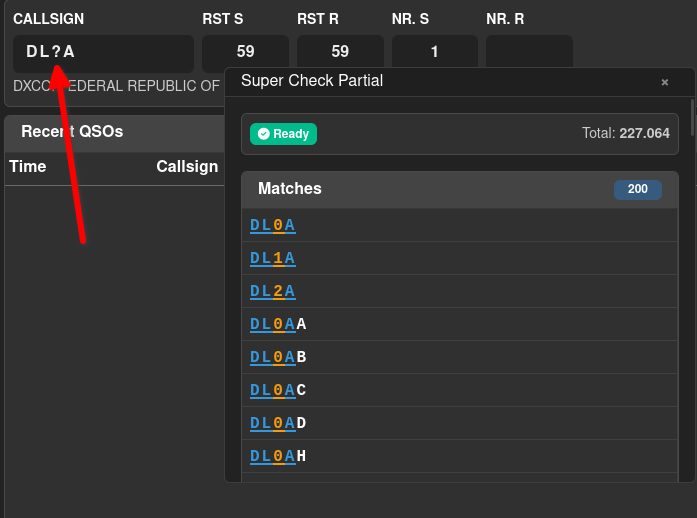
The status bar shows the loading state and the total number of entries in the loaded database.
Map
An interactive Leaflet map that plots each worked station as a marker. The great-circle path to the most recently logged station is drawn as a line.
Toolbar overlays toggle additional layers:
| Toggle | Effect |
|---|---|
| Night | Day/night terminator shadow |
| Path | Great-circle path line to the last QSO |
| Station | Your own station marker |
| Auto-fit | Automatically zooms to fit all QSOs after each new entry |
| Gridsquares | Maidenhead grid square overlay |
Map preferences are saved per user and persist across sessions. Gridsquare overlay is disabled by default as it needs more ressources to render.
UTC Clock
Shows the current UTC time, updated every second.
Winkeyer
Appears automatically when the Winkeyer integration is enabled in your Wavelog settings. Provides CW keying directly from the logging engine:
- F1–F10 — function keys that send pre-programmed CW messages
- CW Speed — WPM setting, adjustable live
- Stop — interrupts transmission immediately
- Tune — sends a continuous carrier for antenna tuning
- Text input — type arbitrary text and send it via the Send button
The Winkeyer component reads the callsign, RST, serial, exchange, and grid fields directly from the QSO entry form.
Control Panel
Click the slider icon (top-left of the workspace) to open the Control Panel sidebar. It slides in from the left by default; you can change the side in the Settings section at the bottom.
Components
A toggle button for each component lets you hide or show it without losing its position and size.
User Layouts
Save your current window arrangement as a named layout. Saved layouts appear as a list from which you can load or delete them. One layout can be marked as the default — it is automatically applied every time you open the logging engine (independent of the contest session!)
- Save New Layout — prompts for a name and saves the current window positions and sizes
- Reset to Default Layout — discards any manual moves and reverts to the built-in default arrangement
To "rename" a layout, simply save a new layout with the same name — the old one will be overwritten. Deleting a layout removes it permanently from your saved layouts list.
End Session
The red End Session button closes the logging engine and returns you to the Contest Manager. Your QSOs remain saved.
Keyboard Shortcuts
QSO Logger
| Key | Action |
|---|---|
Enter |
Save the QSO |
Escape |
Clear the entry form |
Space |
Jump from the callsign field to the first empty exchange field |
Tab |
Move to the next active exchange field in the configured order |
If the callsign field contains a numeric entry (digits only), Enter, Space and Tab trigger a Quick QSY instead of their regular actions.
QSO List (inline edit)
| Key | Action |
|---|---|
Double-click |
Open inline edit mode for a QSO row |
Enter |
Save the edited QSO |
Escape |
Cancel the edit and restore the original values |
Winkeyer
| Key | Action |
|---|---|
F1 – F10 |
Send the corresponding CW macro |
Multi-Operator / Club Station
When the session is operated from a club station, all operators logged into the same Wavelog instance share the same QSO list in real time. New QSOs logged by any operator appear immediately in all open logging engine windows. The Operator column in the Recent QSOs list shows who logged each QSO.
Each operator can only edit or delete QSOs they personally logged. If you have more multiple operators, we recommend using the Wavelog Worker Backend to reduce load on the server. More Information about the Worker can be found in the Wavelog Worker documentation.
Serial Number Reservation
When several operators log into the same session at the same time, they would otherwise all see the same "next" serial number and hand it out twice. To prevent this, the server reserves each number for a single operator.
The number in Nr. S has two states, shown by its colour (club stations only):
| Colour | Meaning |
|---|---|
| Red | Preview. This is only an estimate of the next number — another operator may still take it. |
| Green | Reserved. This number belongs to you and is not offered to anybody else. |
The reservation is requested as soon as you commit to a QSO, which is either
- pressing
Spacein the callsign field, or - clicking or tabbing into one of the received exchange fields (Nr. R, Exch R, Grid R).
From that moment the number is yours. When the QSO is saved, it is used up and the next operator continues from there. If you clear the form with Escape instead of logging, the number is given back and can be used again.
If you overwrite Nr. S by hand with a higher number, the series continues from that number after the QSO is saved, so the same value is never handed out again. While this is possible, it is not recommended as it can lead to gaps in the serial number sequence.
Two badges next to the Nr. S label show how the session counts, matching the session settings:
- per band — the series restarts on each band
- per op — every operator has their own series
With the Wavelog Worker enabled, other operators see the updated preview immediately. Without it, the preview updates on the next heartbeat.